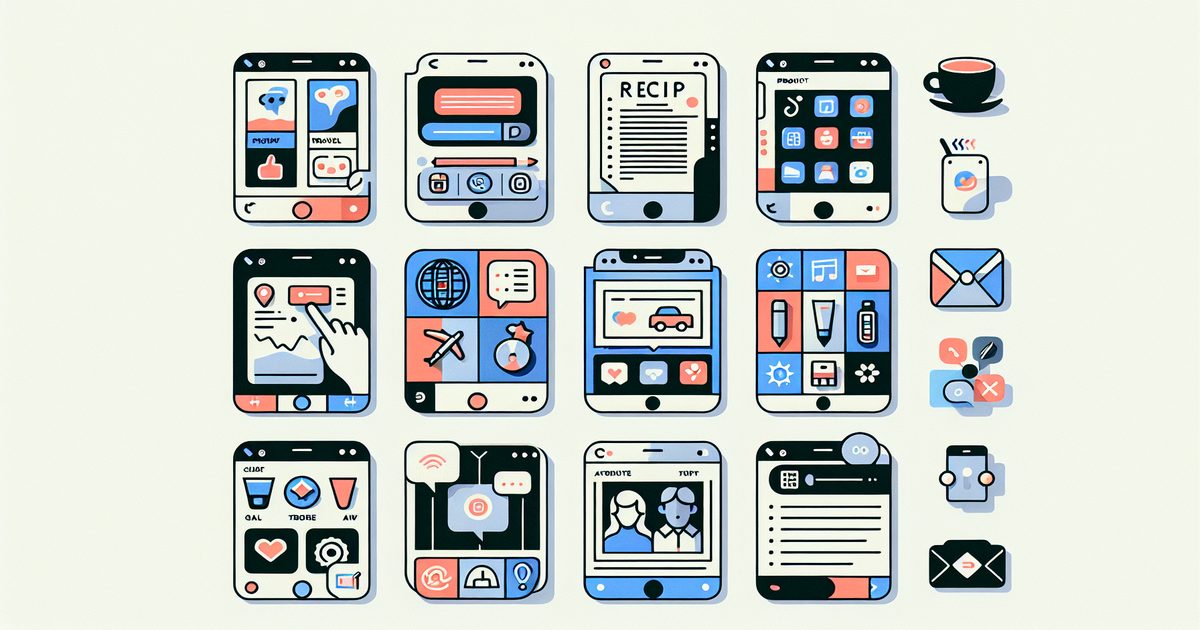
Open your iPhone's screenshot folder right now. Scroll through it for thirty seconds.
Somewhere in there: a recipe you planned to cook. A product you almost bought. A flight confirmation. A quote that made you stop scrolling. A doctor's note. A meme. An address. A promo code that's probably expired.
That's the screenshot folder experience for most iPhone users—a chronological pile of everything important, mixed with everything trivial, presented in a format that makes none of it retrievable.
iPhone users commonly accumulate anywhere from several thousand to over 50,000 screenshots in a lifetime of smartphone use. The issue isn't that we screenshot wrong. The issue is that we screenshot everything equally—and when every screenshot looks the same in your camera roll, the meaningful ones vanish into the noise.
Here are the seven types of screenshots almost everyone takes, why each one is particularly hard to find, and how to finally give each one a home it deserves.
1. Recipes and Food Ideas
What you screenshotted: A pasta recipe from TikTok. A "save for later" dish from Instagram. A cafe you want to try. A menu you photographed at a restaurant.
Why you can't find it: You took it on a random Tuesday, you don't remember the exact dish name, and your camera roll has 400 other screenshots from that month. By the time you're standing in a grocery store trying to remember the ingredients, scrolling is useless.
Food screenshots are arguably the most common and the most time-sensitive. You need them at the moment of cooking or shopping—not when you happen to stumble across them while looking for something else.
2. Shopping and Wishlists
What you screenshotted: A product you're considering. An outfit you loved. Furniture for a room you're redecorating. A gadget that looked interesting. A "compare this price later" capture.
Why you can't find it: By the time you're ready to buy, you've forgotten the brand, the shop, or even what the item looked like. Multiple wishlist screenshots from different sources look almost identical at thumbnail size.
The shopping screenshot is often taken in a moment of intent ("I'll buy this soon") that fades quickly. When it resurfaces, it's worth gold. When it's buried, it might as well not exist.
3. Travel Confirmations and Logistics
What you screenshotted: A hotel booking confirmation. A flight number. A restaurant recommendation from a friend. An address in a city you've never been to. A local transportation tip.
Why you can't find it: Travel screenshots are often taken weeks before the trip, then need to be retrieved urgently—at the airport gate, standing in front of a hotel, or lost in a foreign city. Scrolling through months of screenshots while stressed is not a good experience.
These are high-stakes screenshots. Losing access to a hotel confirmation address at midnight in an unfamiliar city is not a minor inconvenience.
4. Receipts, Documents, and Records
What you screenshotted: An order confirmation. A warranty number. A return policy. An insurance card. A prescription label. A screenshot of your boarding pass before it loaded.
Why you can't find it: You need these screenshots months later, often for very specific purposes (a return, a claim, proof of purchase). They look exactly like dozens of other text-heavy screenshots and have no distinguishing visual markers.
Documents and records are the screenshots you most need to find and are often the least findable. They're stored in the same place as a meme you took three years ago.
5. Quotes, Articles, and Inspiration
What you screenshotted: A passage from an article you were reading. A motivational quote. A thread on social media that articulated something you agreed with. A book excerpt.
Why you can't find it: These are captured in a moment of intellectual or emotional resonance—you wanted to save the idea, not just the image. But without any tagging or categorization, that idea is frozen behind a thumbnail in your camera roll, indistinguishable from a screenshot of your bank statement.
Many people screenshot quotes or articles intending to re-read them, share them, or use them in something creative—and never do, because retrieval is too hard.
6. Work and Professional Reference
What you screenshotted: A Slack message with important context. A spreadsheet formula. A competitor's pricing page. A contract clause. A colleague's contact info before they left the company. An error message you needed to debug.
Why you can't find it: Work screenshots pile up invisibly alongside personal ones. Searching "the Slack screenshot from March" in a camera roll with 3,000 entries is a hopeless task without text search.
Professional screenshots often have real stakes—losing access to that contract clause or that pricing data can mean hours of re-research.
7. Health Information
What you screenshotted: A medication dosage. Discharge instructions from a hospital visit. A list of symptoms you looked up. Your blood pressure readings over time. A telehealth chat with important instructions.
Why you can't find it: Health screenshots are taken infrequently but are critically important when needed. They often look like generic text on a white background—hard to identify by thumbnail, easy to miss when scrolling.
This is perhaps the category where "I can't find it" carries the most real-world consequence.
According to community discussions on r/ApplePhotos and r/productivity, the vast majority of iPhone users simply let screenshots pile up indefinitely—they know organization is needed but find the manual effort too high. The result: critical information exists on the device but is functionally inaccessible.
The Underlying Problem: All Screenshots Are Created Equal
Your iPhone doesn't know the difference between a recipe and a receipt. It sees pixels, ordered by timestamp. The entire seven-category problem above has the same root: a complete lack of automatic categorization.
Manual solutions (creating albums by hand, tagging in third-party apps, regularly deleting) all require consistent effort that most people don't maintain. Life gets busy, screenshots accumulate, and the system breaks down.
A System That Works Without Maintenance
SuperShots AI approaches this differently. Instead of asking you to sort your screenshots, it reads them—using on-device OCR powered by Apple Vision Framework—and then uses AI to understand what each screenshot is actually about.
A recipe screenshot is recognized as food content. A confirmation number is filed as a record. A quote lands in inspiration. All automatically, the moment you take the screenshot.
Then when you need to find something, you search by content: "pasta recipe," "Amazon order," "hotel Barcelona," "doctor instructions." Not by date, not by scrolling—by what the screenshot actually contains.
Privacy is built in: images are processed on your device first, and any cloud processing deletes them within 3–10 seconds. Nothing is stored permanently on external servers.
Frequently Asked Questions
Does this work for screenshots I've already taken, or only new ones? SuperShots AI can process your existing screenshot library, not just captures going forward. You can import and organize your full backlog—including years of accumulated screenshots.
What if my screenshot is a photo I took of something (like a menu or a whiteboard)? It still works. SuperShots uses Apple Vision Framework for OCR, which is designed to read text in real-world photos, not just digital screenshots. Menus, handwritten notes, and physical documents are all supported.
How is this different from just searching in the Photos app? iOS Photos can search text within screenshots (Live Text), but it's inconsistent—it depends on indexing, contrast, and font size, and often misses results. SuperShots uses a dedicated OCR pass on every screenshot and adds AI-powered topic categorization on top, making search dramatically more reliable.
Is it free? SuperShots AI is available on the App Store with a free tier. Download it and see how many screenshots from your backlog are suddenly findable.
Stop Treating All Screenshots the Same
Recipes, receipts, travel plans, work notes, health information—each deserves to be findable when it matters. The problem isn't the habit of screenshotting. It's the lack of a system that makes those screenshots useful after you take them.
Download SuperShots AI and let the app do the sorting. Your seven categories of screenshots are already there—they just need to be found.