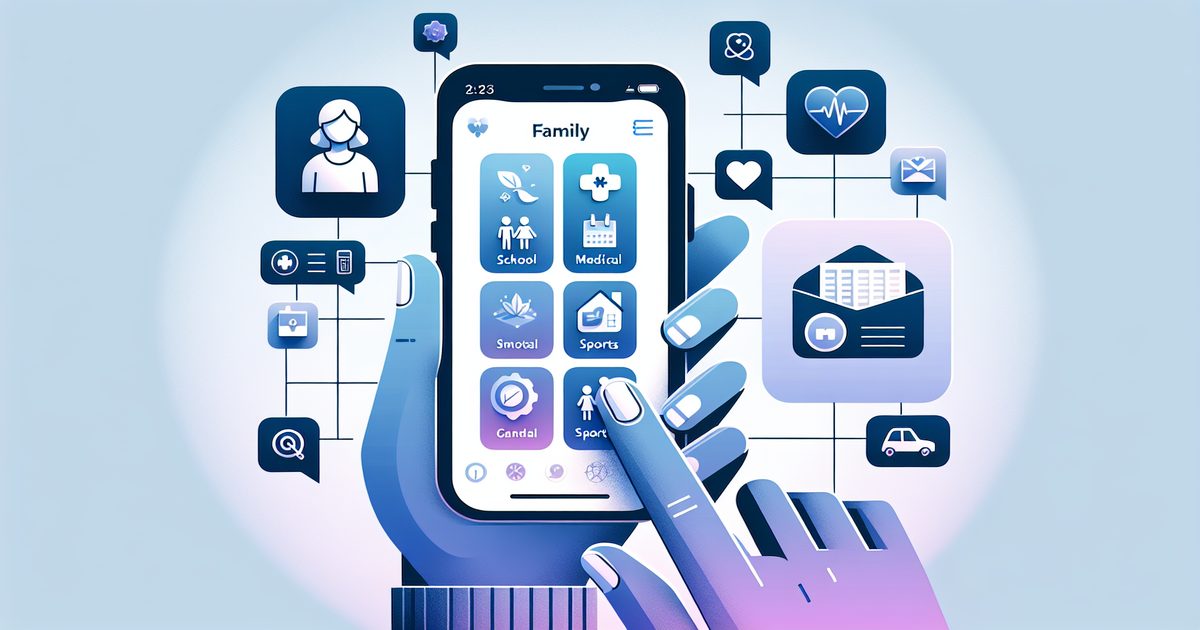
You're at soccer pickup when your phone buzzes. The coach is asking about next week's tournament schedule — the one you definitely screenshotted from the team app three weeks ago. You scroll frantically through your camera roll: memes, selfies, a blurry photo of a menu, more memes... and somewhere in there is that screenshot. Somewhere.
If this sounds familiar, you're not alone. Parents are some of the most prolific screenshot takers on the planet — and the most likely to lose exactly the screenshot they need at the worst possible moment.
Why Parents Screenshot Everything (And Why It's a Mess)
Parenting in the digital age means managing an avalanche of information that comes through apps, emails, group chats, and websites — none of which plays nicely together. So what do we do? We screenshot it.
Here's just a sample of what a typical parent has buried in their camera roll:
- School lunch menus and event calendars from the school app
- Doctor and dentist appointment confirmations
- Kids' sports schedules and tournament brackets
- Vaccine records and pediatric growth charts
- Homework assignments photographed from teacher messages
- Recipes shared in the class parent WhatsApp group
- Insurance cards and pediatric medication dosage guides
- Swim lesson times, dance recital details, birthday party addresses
The average parent's camera roll looks like a filing cabinet that was thrown down a flight of stairs. Photos of the kids are mixed with screenshots, screenshots are mixed with random WhatsApp images, and nothing — absolutely nothing — is where you'd expect it to be.
According to a 2024 study by Cozi, 67% of parents say they regularly miss or nearly miss family commitments because of disorganized digital information.
The Hidden Cost of Screenshot Chaos
Lost screenshots aren't just a minor inconvenience. They add up to real stress:
Time lost. Searching through 4,000 photos for one screenshot can take 10–15 minutes. Multiply that by every school event, doctor appointment, and activity schedule you're juggling.
Missed information. That permission slip deadline you thought you'd remember from the screenshot? Gone. The allergy instructions from the pediatrician? Buried under 200 selfies from your kid's birthday party.
Duplicate work. You end up asking the same questions again — texting the coach, calling the doctor's office, asking the WhatsApp group — because you can't find what you already saved.
How Smart Parents Are Organizing Their Family Screenshots
The solution isn't to stop screenshotting — it's to make those screenshots findable. Here's a system that actually works:
Step 1: Capture First, Organize Later
Don't try to manually file screenshots in the moment. You're in the middle of carpool, you don't have time. Take the screenshot, move on.
Step 2: Let AI Do the Heavy Lifting
This is where things get interesting. Apps like SuperShots AI use AI to automatically read and categorize your screenshots — no manual sorting required.
When you open a batch of screenshots in SuperShots, the app uses on-device OCR (powered by Apple's Vision Framework) to read the text in every screenshot, then sends that information to the cloud where AI automatically assigns categories, titles, and searchable tags. Your school schedule becomes findable by searching "lunch menu" or "field trip." Your doctor notes show up when you search "pediatrician" or your child's name.
The entire process takes seconds. And because the images are deleted from the server within 10 seconds of processing, your family's private information stays private.
Step 3: Search, Don't Scroll
Once your screenshots are organized, you stop scrolling and start searching. Need that tournament bracket? Search "soccer tournament." Need the dentist address? Search "dentist" or "appointment." It works like Google — but for your personal screenshot archive.
5 Types of Family Screenshots Parents Should Organize
1. School & Academic Info
Lunch menus, event calendars, teacher messages with homework details, report card screenshots, class photo order forms. These have hard deadlines — lose them and you miss the window.
2. Health & Medical Records
Vaccination records, pediatric growth charts, prescription details, doctor's after-visit summaries, insurance card photos. This is information you really don't want to search for in an emergency.
3. Kids' Activities & Sports
Practice schedules, tournament brackets, recital programs, swim lesson times, carpool logistics. Half the stress of managing kids' activities comes from not having the information when you need it.
4. Family Logistics
Birthday party invitations with addresses, restaurant recommendations from friends, travel confirmation screenshots, hotel details for school trips.
5. Parenting Resources
Articles about sleep schedules, pediatric medication guides, allergy information, recipe ideas shared in parent groups. Stuff you screenshotted because it seemed useful — and actually is, if you can ever find it again.
Making It Part of Your Routine
The best screenshot organization system is one you actually stick to. Here's a simple routine:
Weekly (5 minutes): Open SuperShots AI, import the week's screenshots, let the AI categorize them. Done.
Before any event or appointment: Search your archive first. The screenshot is probably there. Trust the system.
After each school term: Archive or delete outdated information (old lunch menus, past sports schedules) so your search results stay clean.
FAQ
Does SuperShots AI store my family's private screenshots? No. SuperShots AI uses on-device OCR (Apple Vision Framework) to read your screenshots locally. Images are sent to the cloud only for AI categorization and are automatically deleted from servers within 3–10 seconds of processing. Your data isn't stored.
What if my screenshots are in different languages? SuperShots AI handles multiple languages, so if you're in an international school community or screenshot content in other languages, it still gets categorized correctly.
Can I share organized screenshot collections with my co-parent? Currently SuperShots AI is designed for personal use — one account, one device. For co-parenting coordination, you'd still need a shared family app like Cozi or Apple Shared Albums. SuperShots handles the organization layer on your personal device.
Will it work with old screenshots I already have? Yes. You can import existing screenshots from your camera roll into SuperShots AI. The app will read and categorize them just like new ones.
Parenting is chaotic enough. Your phone's camera roll doesn't have to be. Download SuperShots AI and spend 10 minutes organizing the screenshots you already have — your future self (desperately searching for that soccer schedule at pickup) will thank you.